How To Guide
How to Check Notifications
Never miss a beat in your adventures! Convoke notifications keep you in the loop on new messages, friend requests, campaign invites, dice roll requests, scenario updates, scheduled sessions, and more. Here's how to stay on top of everything happening across your campaigns.
Step 1
Open the Notifications Page
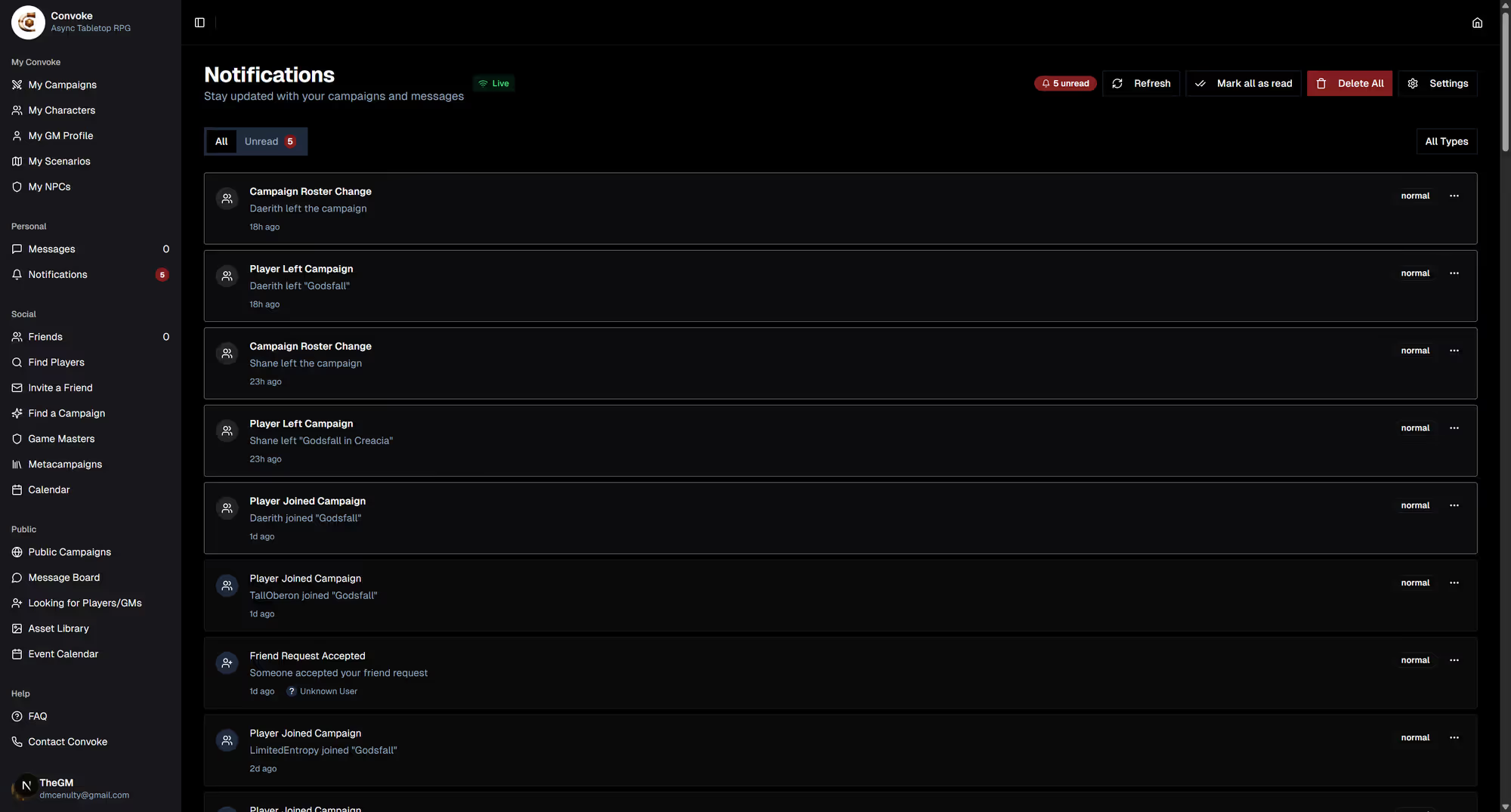
In the sidebar, look under Personal and click Notifications. The badge next to the link shows how many unread notifications you have. You can also press Alt+T as a keyboard shortcut to quickly jump to your notifications from anywhere.
Step 2
Read & Act on Notifications
Your notifications page shows a chronological list of everything that needs your attention. Each notification includes the type of event and a direct link to the relevant content:
- Friend requests — click to go to your Friends page and accept or decline
- Campaign invites — click to view and join the campaign
- New messages — click to jump straight to the conversation
- Dice roll requests — click to go to the scenario and make your roll
- Session scheduled — click to view the calendar event details
Step 3
Mark as Read & Clear
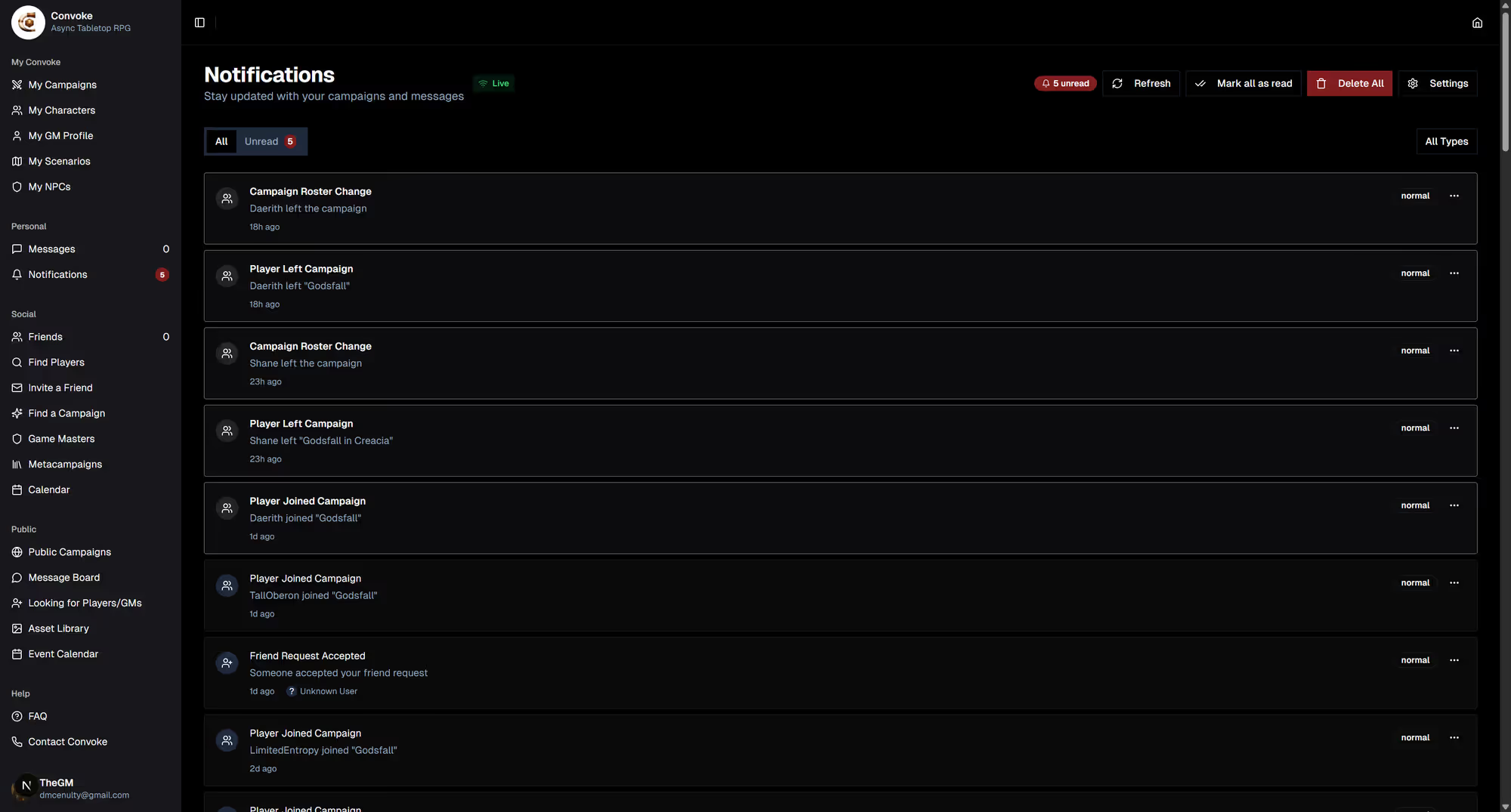
Keep your notification list tidy! You can mark individual notifications as read by clicking the checkmark icon next to each one, or use the Mark All as Read button at the top to clear everything at once. Read notifications move to a dimmed state so you can still reference them, but they won't count toward your unread badge.
Pro Tip
Enable Push Notifications
Want to know the instant something happens? Head to your Settings page and look for the Notifications section. Enable browser push notifications to get real-time alerts on your desktop or mobile device even when you're not on Convoke. This works great on both desktop browsers and as a PWA on your phone.
Pro Tip
Customize What Notifies You
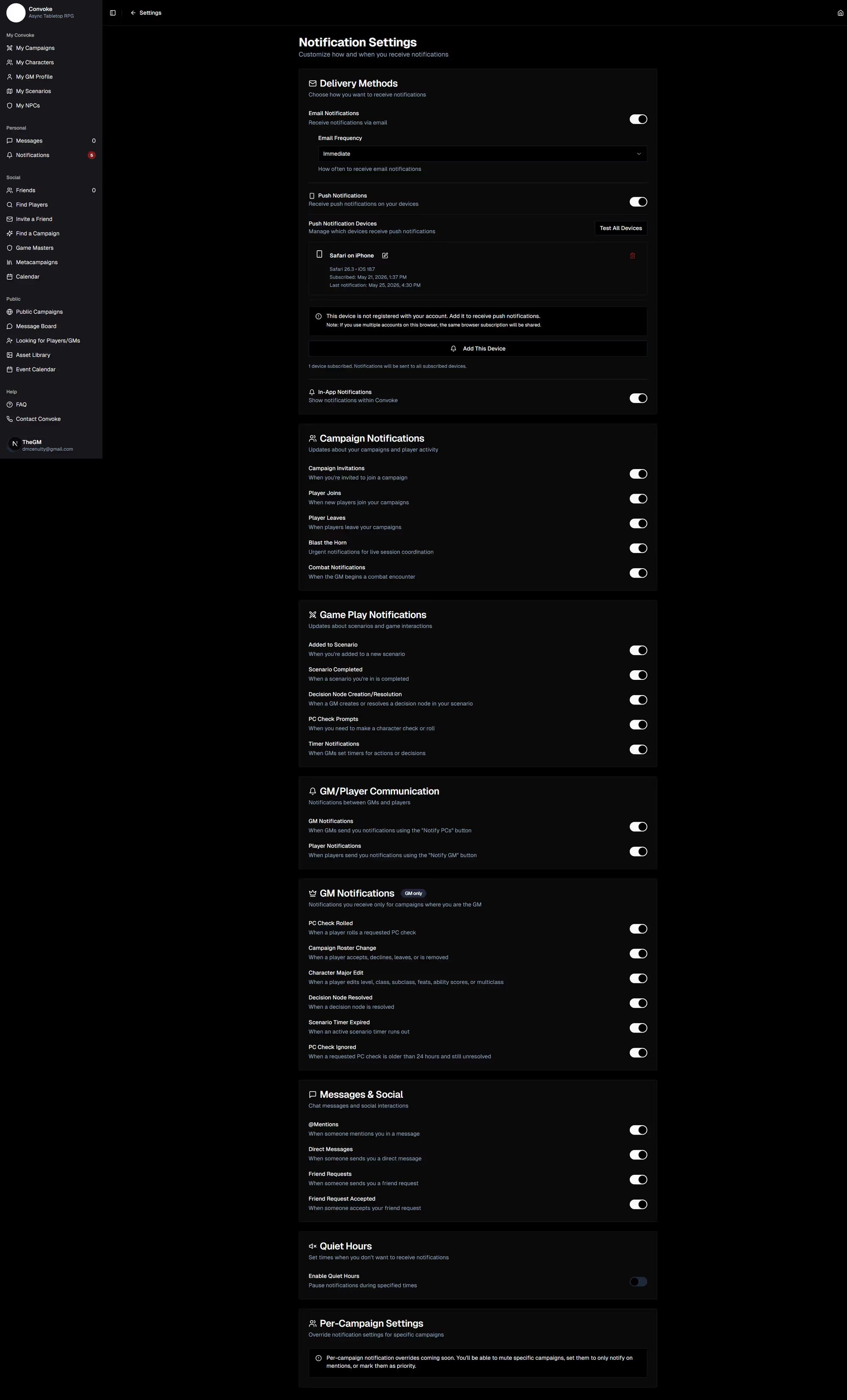
Not every ping needs your attention right away. In your notification settings, you can fine-tune exactly which events trigger notifications — toggle on or off alerts for chat messages, dice rolls, friend requests, campaign events, and more. Tailor it to your play style so you get the updates that matter most to you.