
How To Guide
How to Get Push Notifications
Never miss a message, dice roll request, or campaign invite. Push notifications deliver real-time alerts to your phone, tablet, or computer — even when you're not on Convoke. Here's how to set it up on any device.
iPhone & iPad
Install Convoke & Enable Push on iOS
Push notifications on iPhone and iPad require installing Convoke as an app on your Home Screen. This is a quick one-time setup using Safari. Requires iOS 16.4 or later.
- Open Safari on your iPhone or iPad (must be Safari — other browsers cannot install PWAs on iOS)
- Navigate to Convoke and sign in to your account
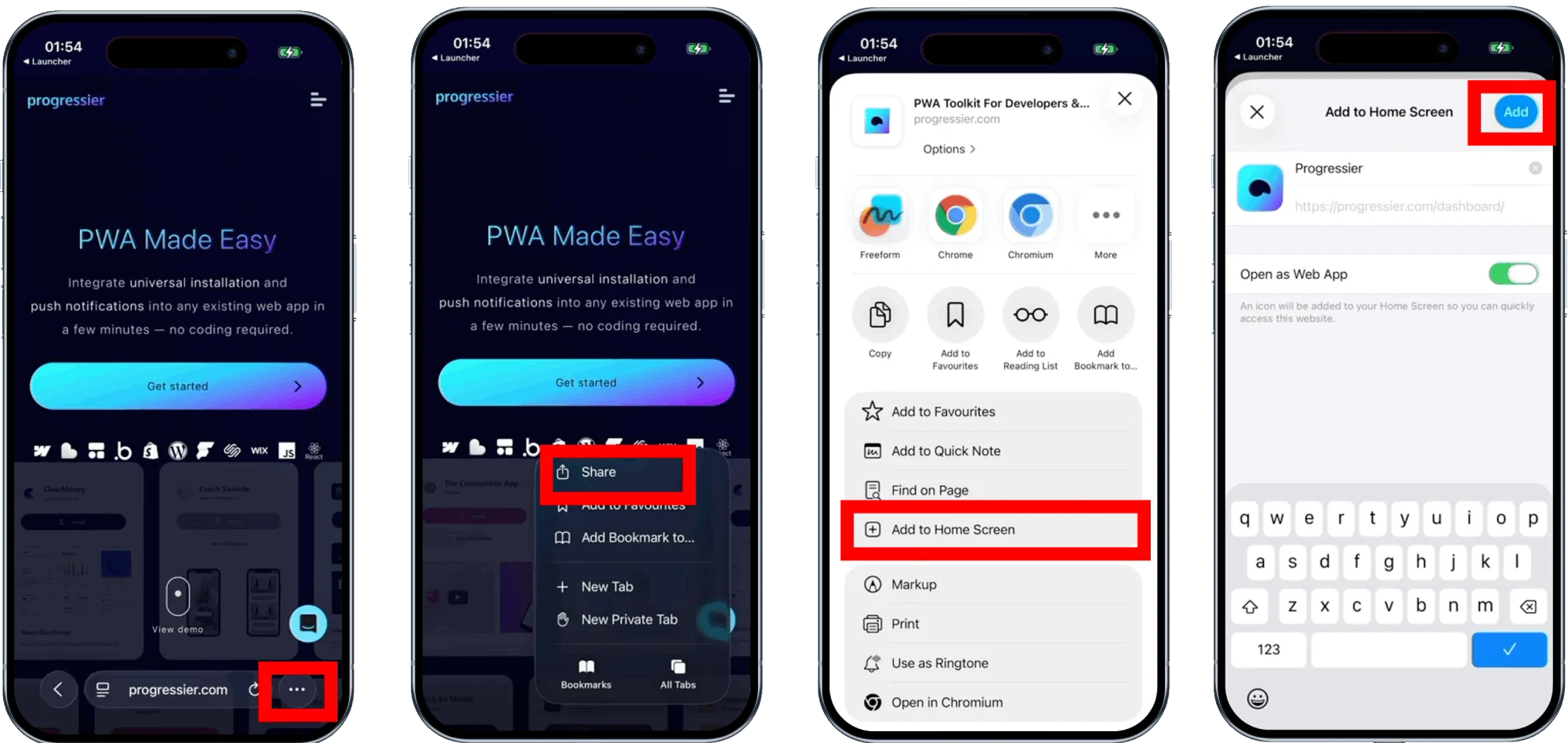
- Tap the Share button (the square with an upward arrow) at the bottom of the screen
- Scroll down and tap "Add to Home Screen"
- Tap "Add" in the upper-right corner
- Open Convoke from your Home Screen — not from Safari
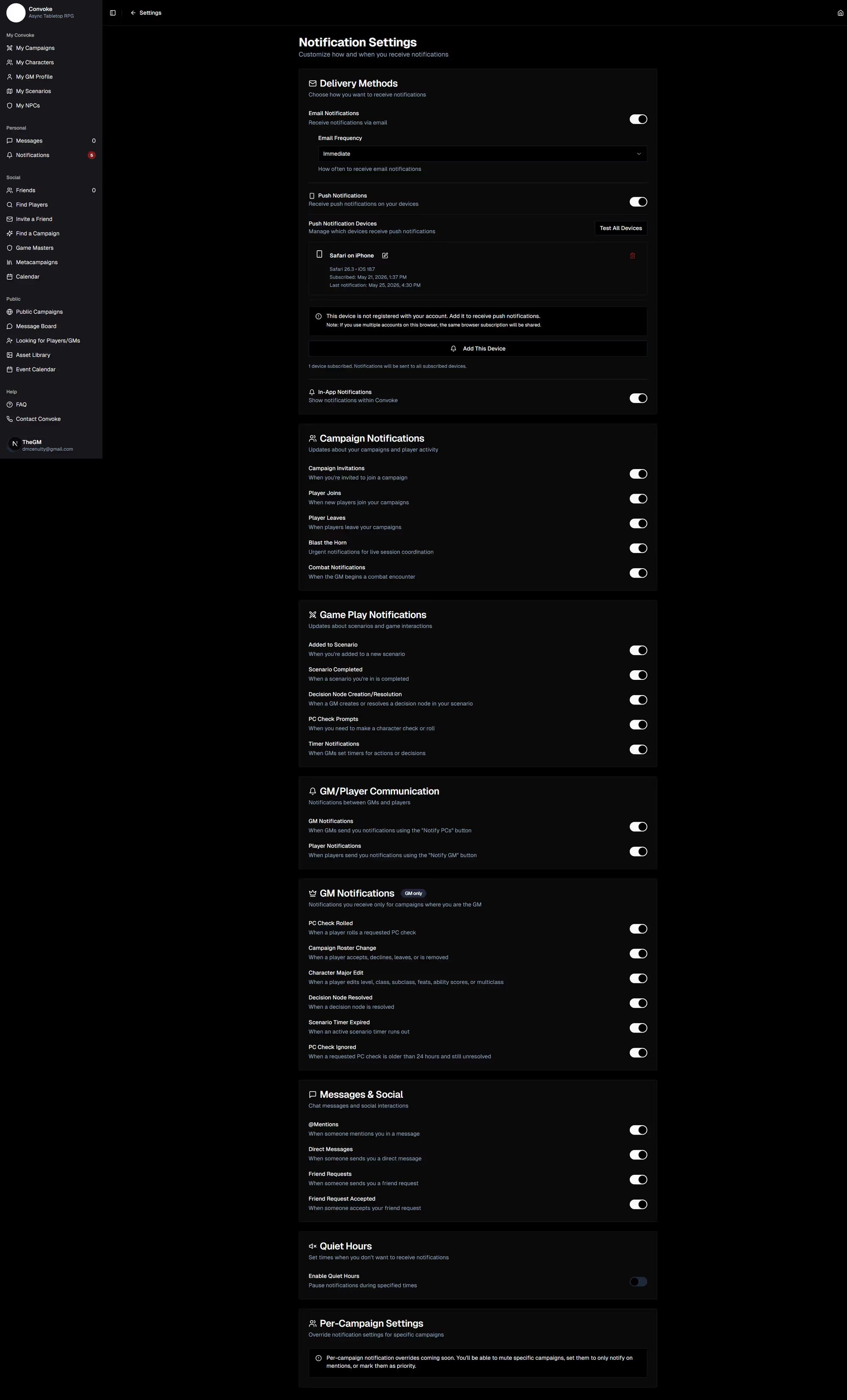
- Go to Settings → Notifications → Delivery Methods and toggle on Push Notifications
Important: Chrome, Firefox, and other browsers on iOS all use the same engine as Safari under the hood. Only Safari's "Add to Home Screen" creates a true Progressive Web App that can receive push notifications.
Android
Get Push Notifications on Android
On Android, push notifications work right in your browser — no installation required. Installing Convoke as an app is optional but gives you a better experience.
Enable push in your browser: Visit Convoke in Chrome, Firefox, or Samsung Internet. When prompted, tap Allow to enable notifications. That's it — you'll receive alerts even when the browser is closed.
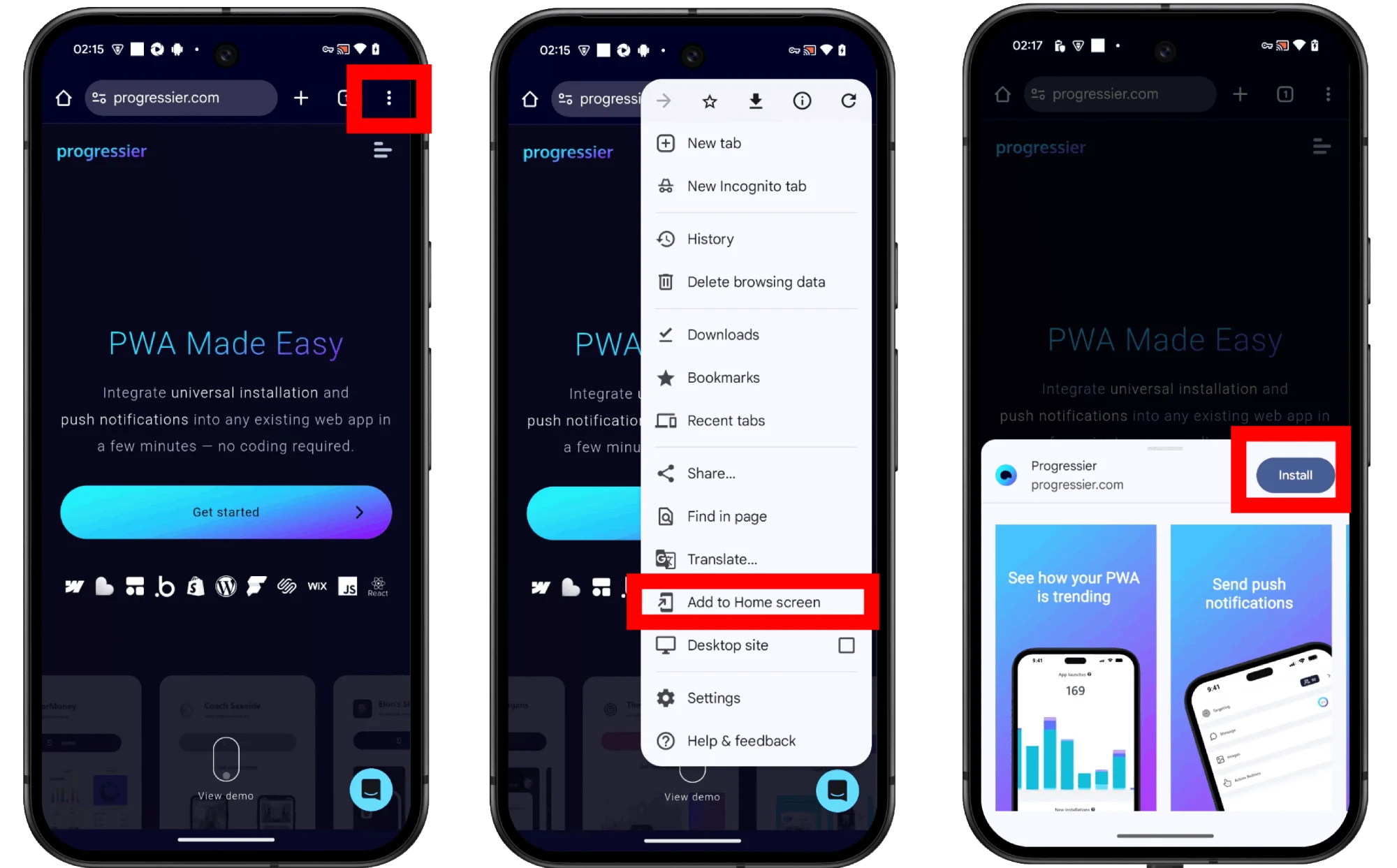
Optional — Install as an app: In Chrome, tap the three-dot menu in the top right, then tap "Install app" or "Add to Home Screen". Convoke will appear on your Home Screen and in your app drawer like a native app. Push notifications from the installed app show Convoke's name and icon instead of the browser name.
Tip: If notifications seem delayed, check that your browser isn't restricted by battery optimization. Go to Android Settings → Battery → Battery Optimization and set your browser to "Don't optimize."
Windows
Get Push Notifications on Windows
On Windows, Chrome and Edge both support push notifications right in the browser. No installation required.
Enable push notifications: Visit Convoke in Chrome or Edge. When prompted, click Allow. Notifications will appear in your Windows notification center just like any other app.
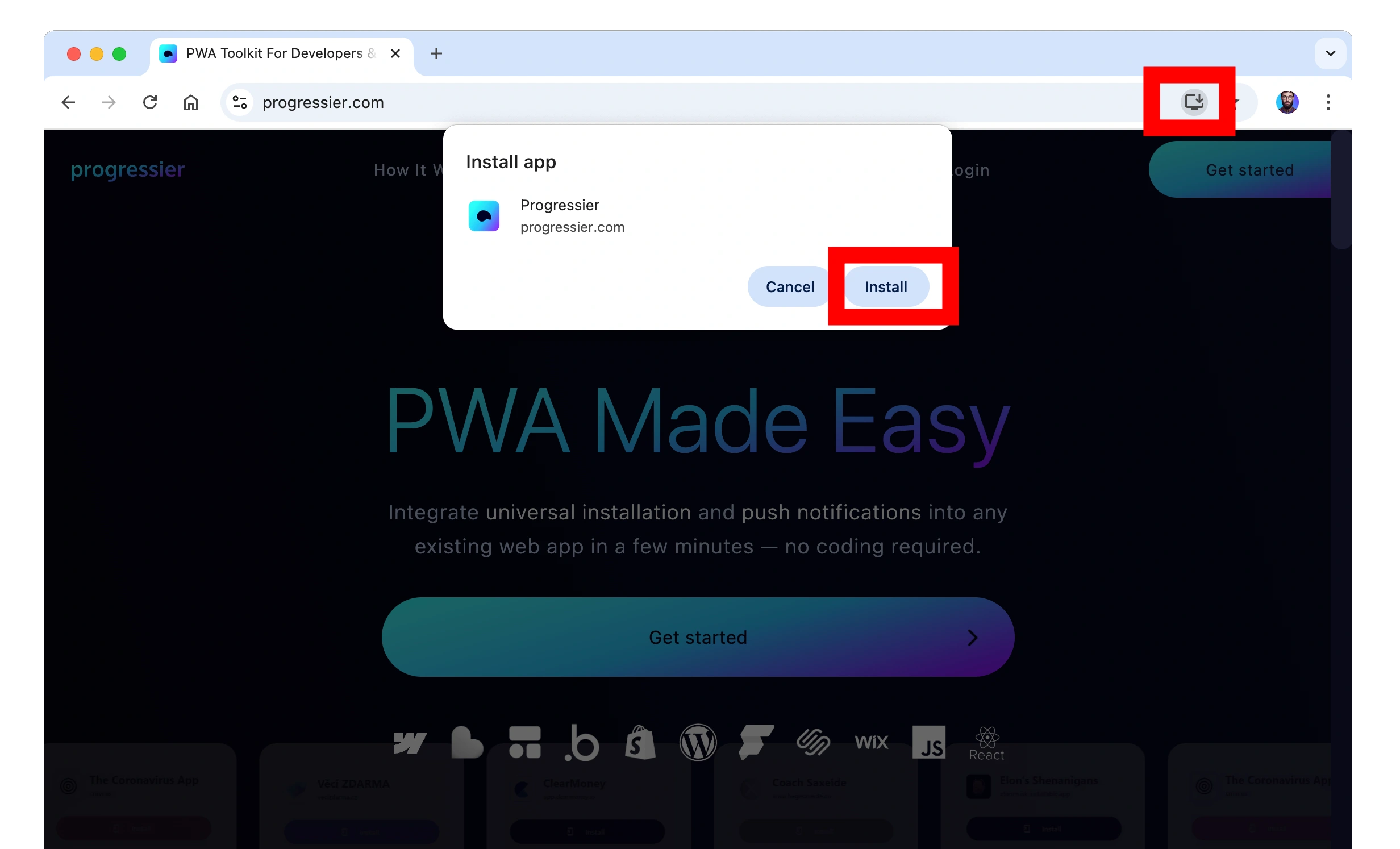
Optional — Install as an app: Look for the install icon in the address bar (a monitor with a down arrow), or open the three-dot menu and choose "Install Convoke". The app will appear in your Start Menu and can be pinned to the taskbar. Edge keeps running in the background by default, so push notifications arrive even when all windows are closed.
Check your Windows settings: Go to Settings → System → Notifications and make sure notifications are turned On for your browser. Also make sure Focus Assist or Do Not Disturb isn't blocking alerts.
Mac
Get Push Notifications on Mac
On Mac, Safari, Chrome, and Edge all support push notifications. Safari has supported web push since macOS Ventura (13.0) — no installation or developer account required.
Enable push notifications: Visit Convoke in your preferred browser. When prompted, click Allow. Notifications appear in your Mac's Notification Center.
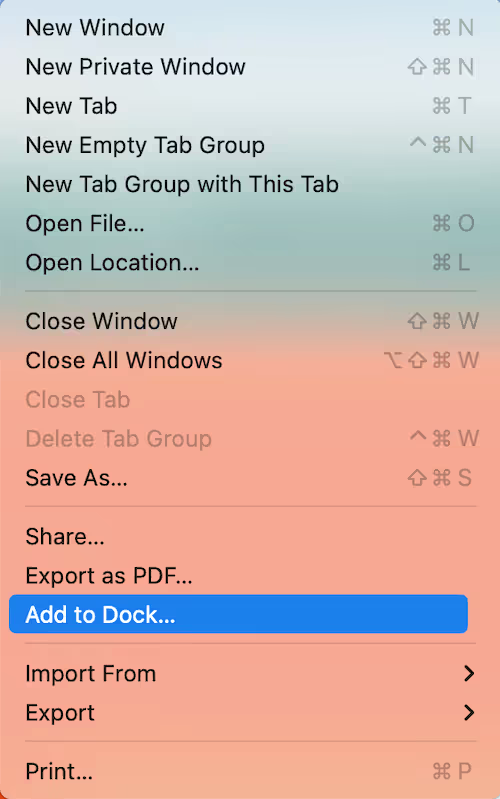
Optional — Add to Dock: In Safari (macOS Sonoma or later), go to File → Add to Dock to create a standalone app. In Chrome or Edge, look for the install icon in the address bar. The installed app appears in your Dock, Launchpad, and Spotlight.
Check your Mac settings: Open System Settings → Notifications and make sure your browser (or the Convoke web app) has notifications enabled. Check that Focus modes like Do Not Disturb aren't suppressing alerts.
All Devices
Enable Push in Convoke Settings
After allowing notifications in your browser (or installing the app on iOS), you need to enable push in your Convoke account settings:
- Log in to Convoke
- Open Settings from the sidebar or user menu
- Click the Notifications tab
- Under Delivery Methods, toggle Push Notifications on
- Your device will appear in the device list below — you can give it a nickname to identify it later
On iOS, if you see an amber banner saying "Push notifications on iOS require installing Convoke as an app," go back to the iPhone & iPad section above and follow the installation steps first.
Pro Tip
Manage Multiple Devices
Subscribe as many devices as you want — your laptop, phone, and tablet can all receive push notifications at the same time. Each device appears in Settings → Notifications → Delivery Methods with its browser and OS info. You can nickname devices to tell them apart, remove old ones you no longer use, and hit the Test All Devices button to verify everything is working.
Pro Tip
Troubleshooting
Not seeing notifications? Here's what to check:
- Browser notifications aren't blocked — look for the lock or tune icon in the address bar and make sure notifications are set to "Allow"
- OS-level notifications are enabled — check your system notification settings for the browser or Convoke app
- Do Not Disturb is off — Focus modes on Mac and iOS, or Focus Assist on Windows, can silently suppress notifications
- On iOS, open Convoke from your Home Screen — push only works when running as an installed app, not in a Safari tab
- On Android, check battery optimization — some manufacturers aggressively kill background processes, which can delay or block notifications