How To Guide
How to Manage Your Asset Library
Your Asset Library is where all your uploaded images live — character portraits, campaign maps, NPC art, scene illustrations, and more. Convoke makes it easy to manage, organize, and reuse your visual assets across all your campaigns.
Step 1
Open the Asset Library
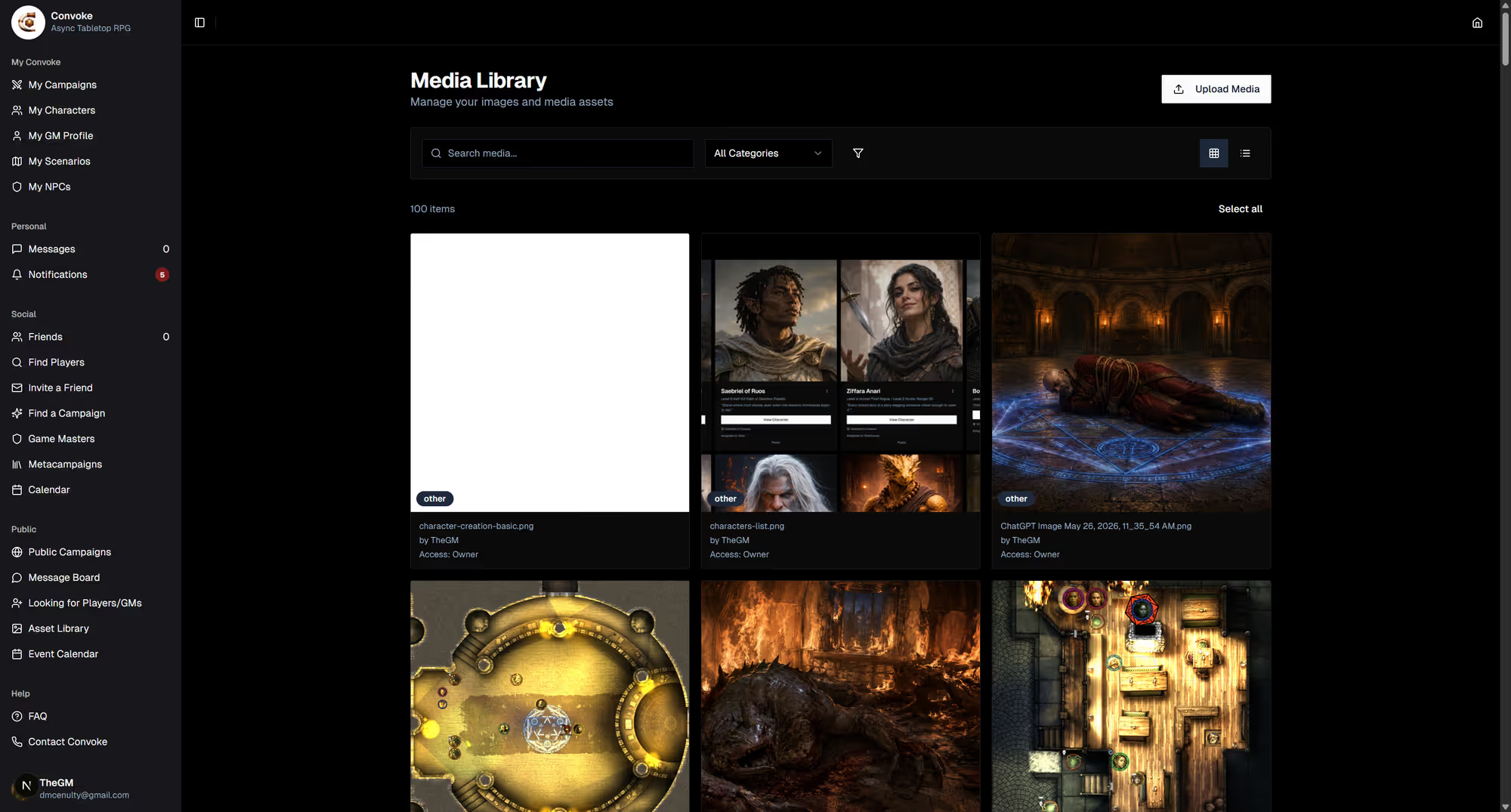
Click Asset Library in the sidebar under "Public." This shows all your uploaded media in a visual grid. You can browse, search, and filter your assets by category.
Step 2
Upload New Assets
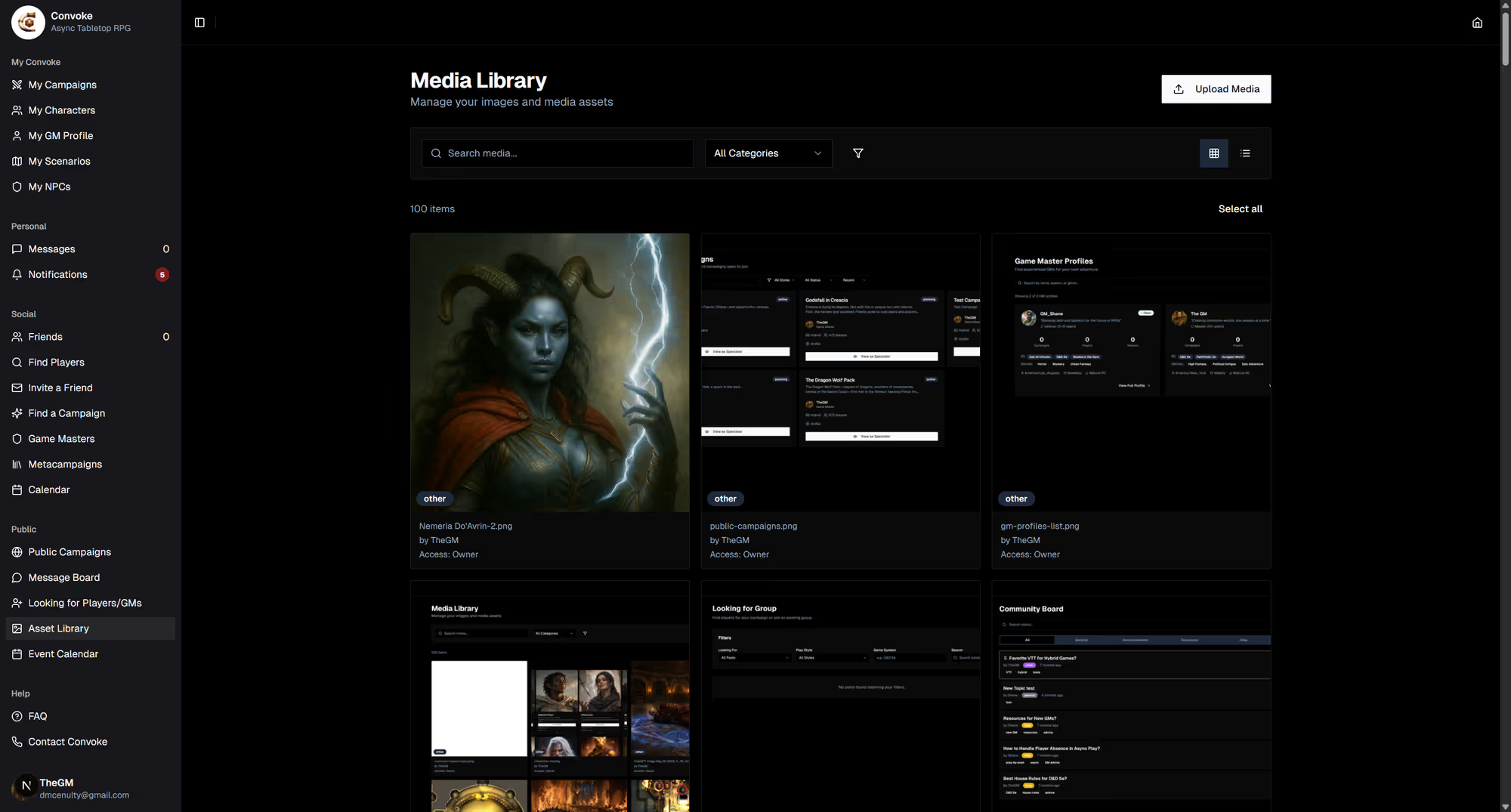
Click the upload button to add new images to your library. You can upload character portraits, maps, scene art, or any visual you want to use in your campaigns. Images are stored securely and can be reused across multiple campaigns and characters.
Step 3
Use Assets in Your Campaigns
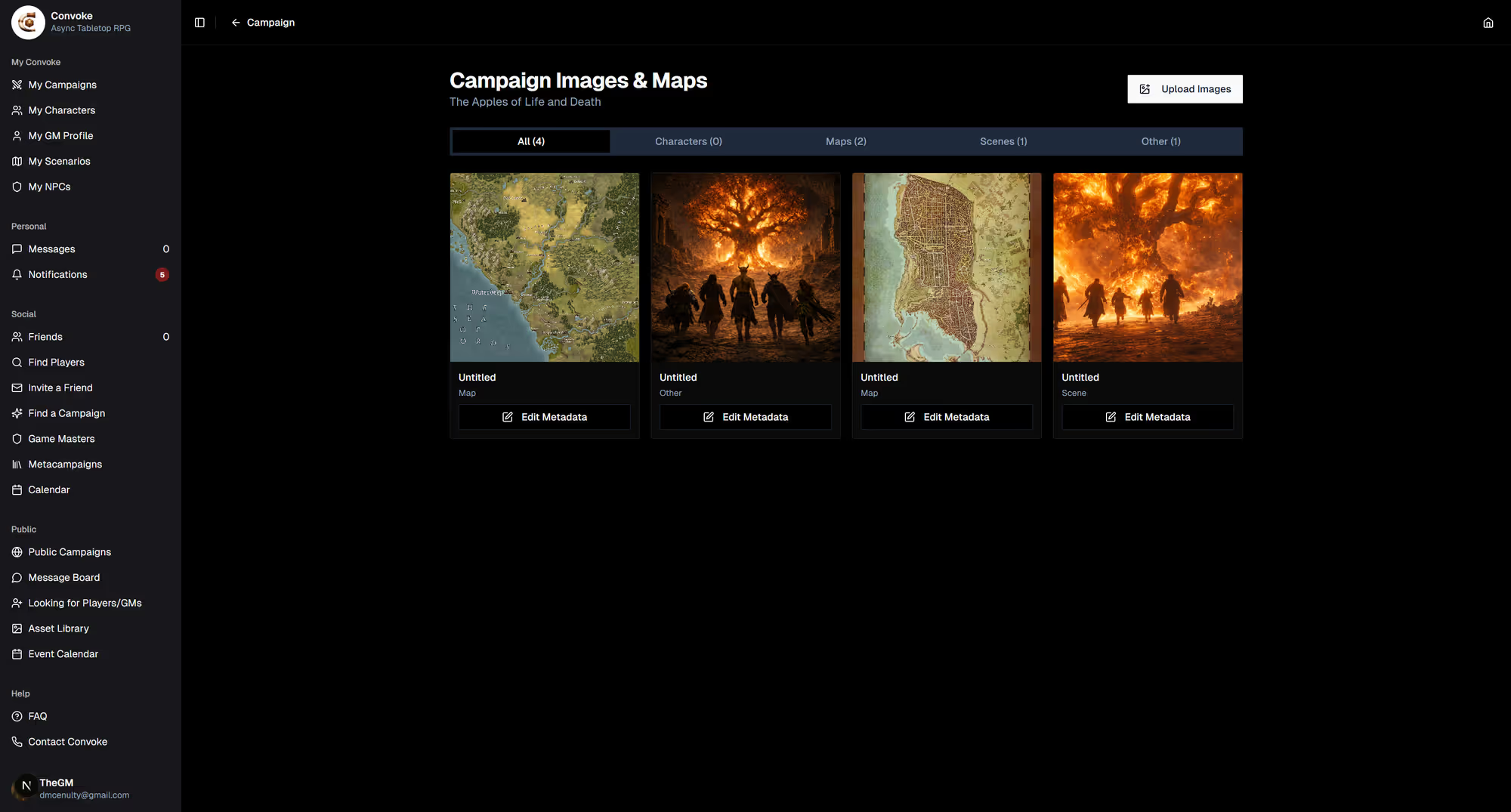
Your uploaded assets can be used anywhere in Convoke — as character portraits, campaign cover images, NPC artwork, chat message attachments, and campaign maps. When you're prompted to add an image anywhere in the app, you can select from your existing library or upload something new.