How To Guide
How to Use the Chat Interface
The chat interface is where the magic happens in Convoke! It's your primary way to roleplay, speak in character, send out-of-character messages, whisper to specific players, and interact with the story. Here's everything you need to know.
Step 1
Find the Campaign Chat
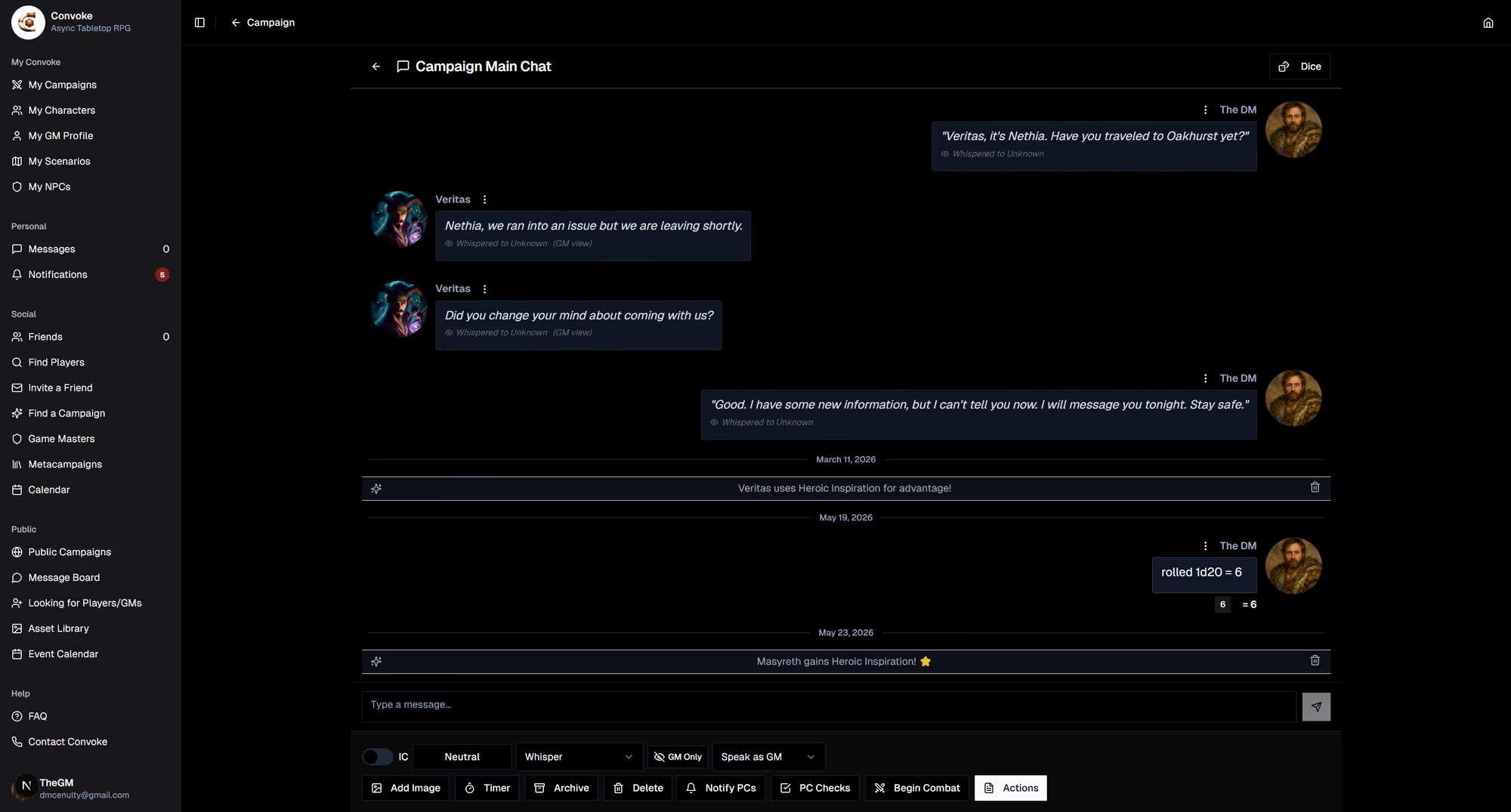
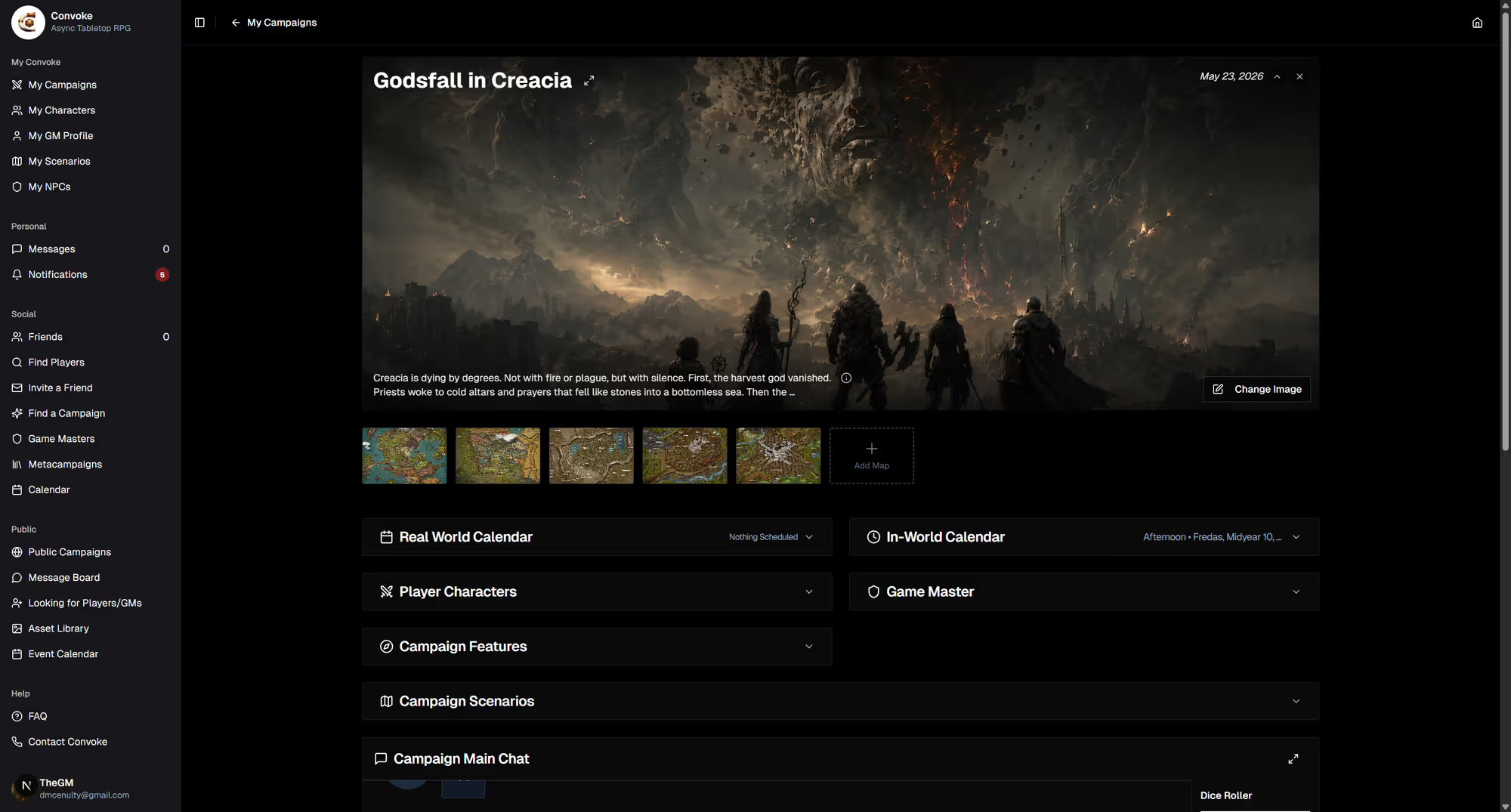
Navigate to any campaign and you'll see the Campaign Main Chat panel. This is the shared space where all roleplay and conversation happens. You can also access scenario-specific chats when playing a scenario.
Step 2
Choose Your Message Type
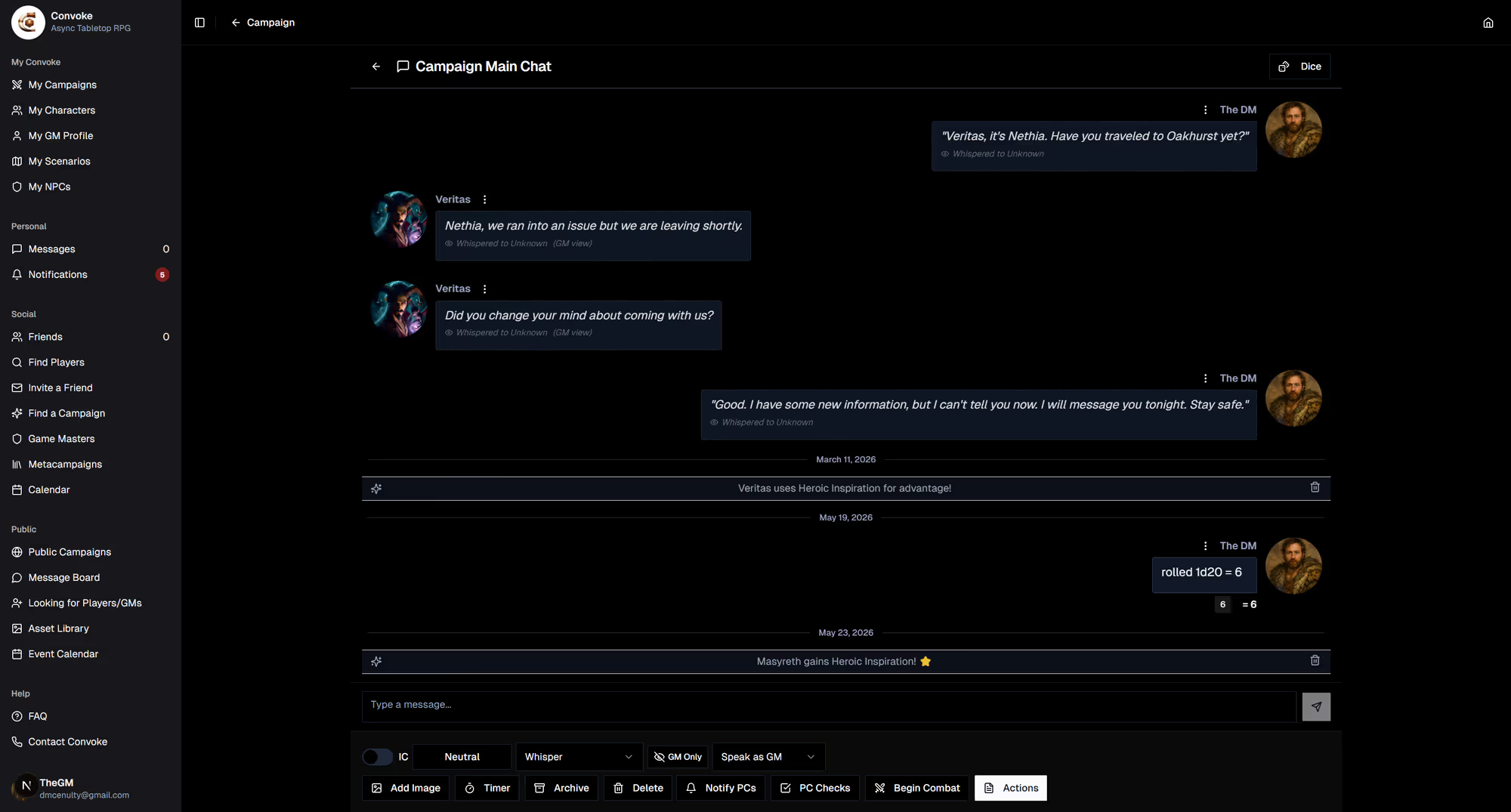
Use the IC/OOC toggle to switch between In-Character and Out-of-Character messages. Set a tone for your message (e.g., Contemplative, Angry, Whispering) to add flavor to your roleplay. You can also use Whisper to send private messages that only certain players or the GM can see.
Step 3
GM Tools in Chat
If you're the GM, you have additional tools: GM Only mode for private notes, Speak as GM vs speaking as an NPC, PC Checks to request dice rolls from players, Notify PCs to ping all players, and Begin Combat to start initiative tracking.